
- How to Import Ready Portfolio Items?
- How to Reorder Portfolio Items?
- How to Create Image Portfolio?
- How to Get the ID for Categories, Other Categories, and Tags?
- WP Portfolio ShortCode and Attributes
- No Items Found message – flush the permalinks.
- How to Create Video Gallery?
- How to Show Specific Portfolio Items using Shortcode?
- How to Hide Portfolio Menu Panel?
- How to Create Websites Portfolio?
- Slider doesn’t work on iOS Devices when Previewed in Portfolio
- How to Add CTA on the Preview Bar?
- How to Override Portfolio Templates?
- Re-import Starter Templates in Portfolio
- How to Style Portfolio Items and Menu Bar
- How to Create Single Page Portfolio?
- Update Navigation Link Strings on Single Portfolio Page
- How to Change “Quick View” String?
- Change site loading message
- How to replicate Starter Templates library?
- WP Portfolio Block Guide
- Troubleshooting WP Portfolio Import Issues: A Step-by-Step Guide
WP Portfolio Block Guide
The WP Portfolio Block was introduced to simplify and enhance the process of adding a WP Portfolio, overcoming the limitations of shortcodes. This block makes it easier than ever to showcase portfolios on your website with a wide range of customization options.
Adding the WP Portfolio Block with Spectra
To use the WP Portfolio Block, ensure that the WP Portfolio plugin and Spectra Plugin are installed and activated on your site.
Steps to Add the WP Portfolio Block with Spectra
- Navigate to the page editor settings.
- Click on the + sign to search for a “Container“.
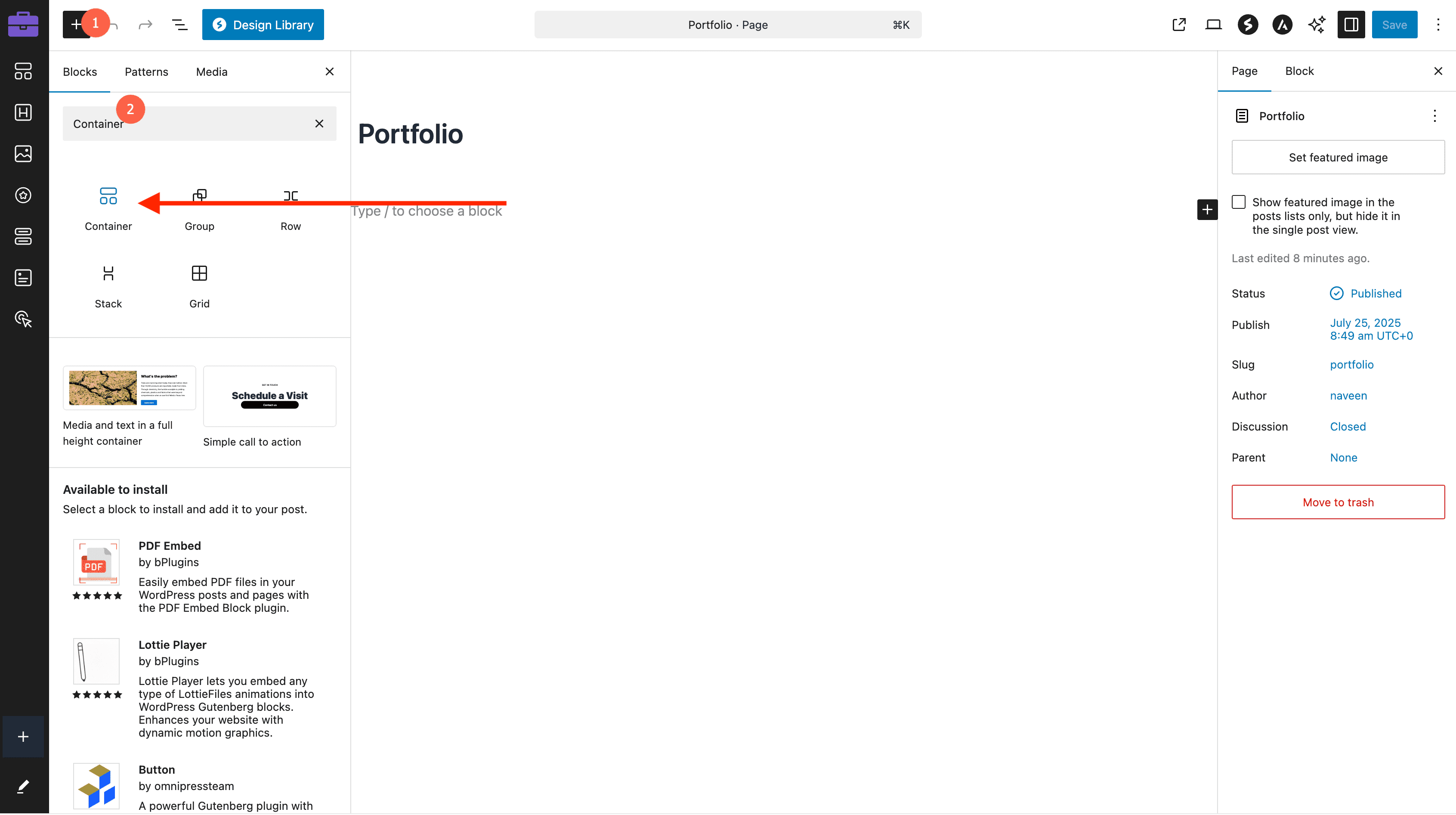
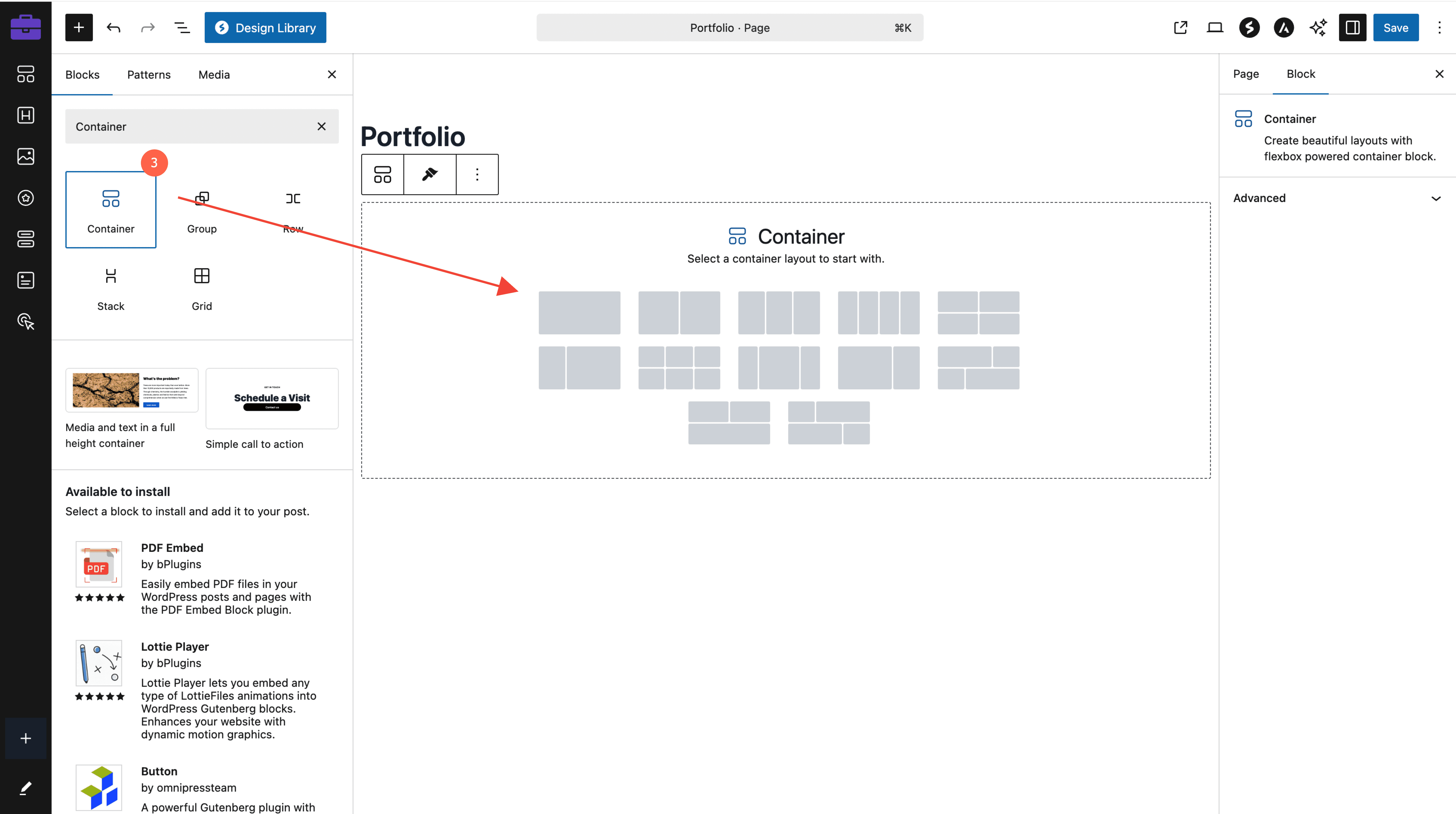
- Select the “Container Block” and choose the desired layout.
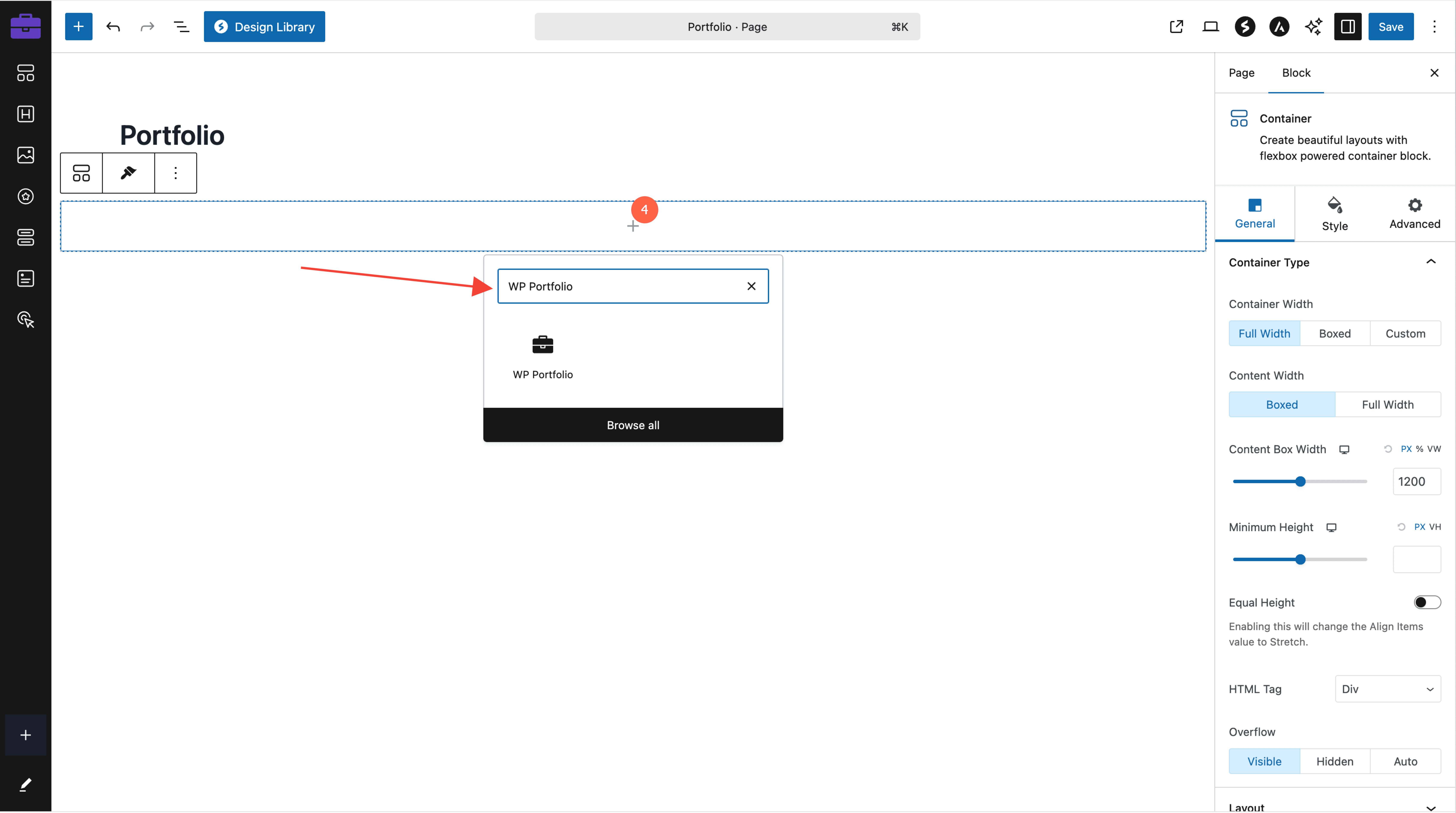
- Then click on Add Block (+) and type WP Portfolio in the search bar and select it.
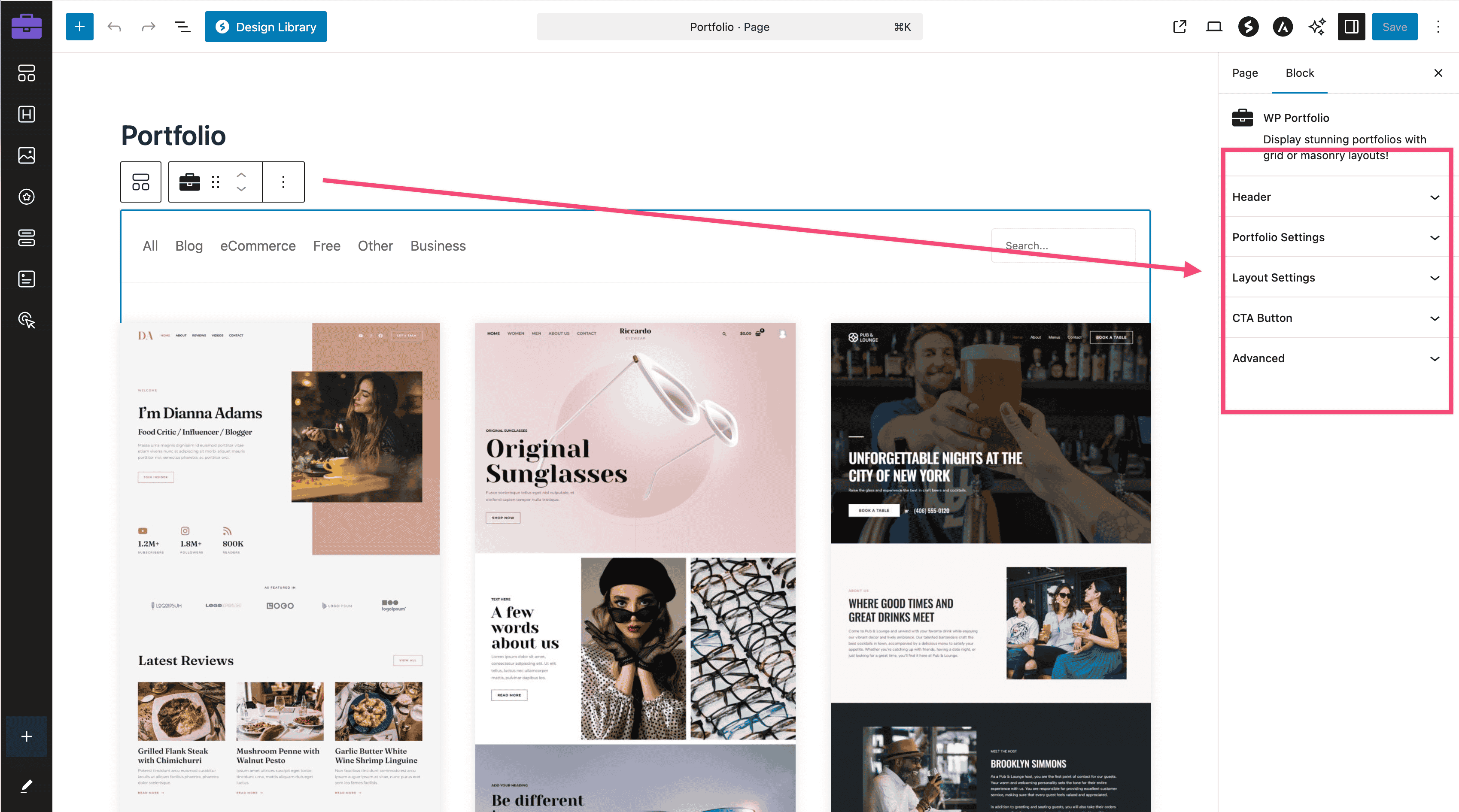
- Once added, all block settings will be available in the right-side panel.
Note
Using the Spectra Container block is recommended for enhanced layout flexibility, but it is not required to use the WP Portfolio Block. You can add the WP Portfolio Block directly to any page or post without a container if preferred.
WP Portfolio Block Settings
The WP Portfolio Block offers five main customization options:
- Header
- Portfolio Settings
- Layout Settings
- CTA Button
- Advanced
1. Header
Customize the layout and appearance of the header to match your design preferences.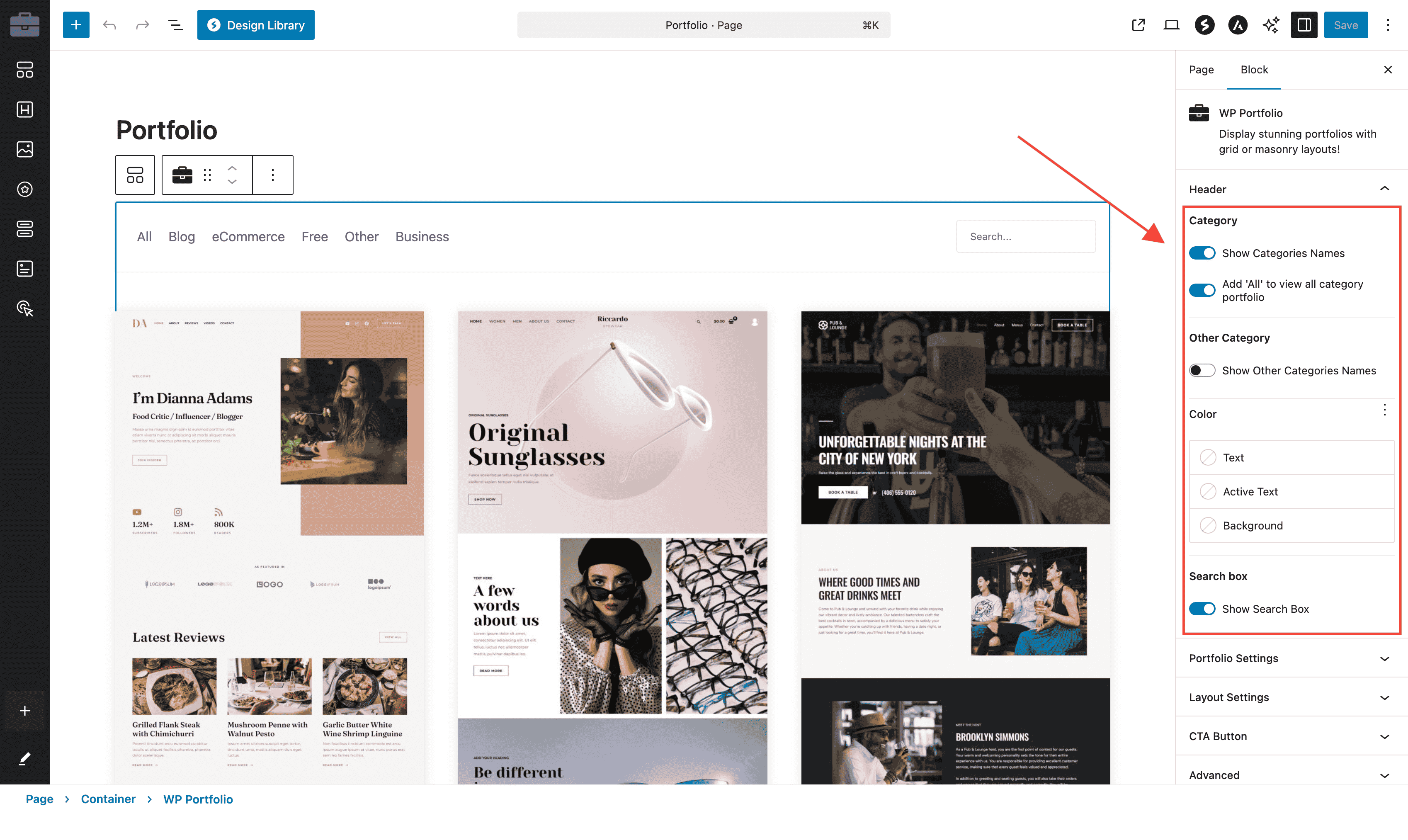
Here are the descriptions for each option visible under the Header section in the WP Portfolio Block settings:
- Show Categories Names: Enables or disables the display of category tabs (like “All”, “Blog”, “eCommerce”, etc.) at the top of the portfolio. If turned off, users won’t be able to filter items by category.
- Add ‘All’ to view all category portfolio: When this is enabled, an “All” tab appears in the filter tabs, allowing users to see all portfolio items regardless of category. This is helpful for giving a complete view without forcing users to click through each tab.
- Show Other Categories Names: If this is toggled on, it displays an “Other” tab for portfolio items that aren’t assigned to any of the visible categories. If it’s off, those items just won’t appear in the filter list.
- Color Settings (Text, Active Text, Background): These let you customize the appearance of the category filter bar:
- Text: The color of inactive category names.
- Active Text: The color used when a category tab is selected.
- Background: The background color of the filter bar area.
- Show Search Box: Displays a search input field above the portfolio grid, allowing visitors to quickly search for specific portfolio items by title or keyword.
2. Portfolio Settings
This section allows you to configure the core aspects of the portfolio display.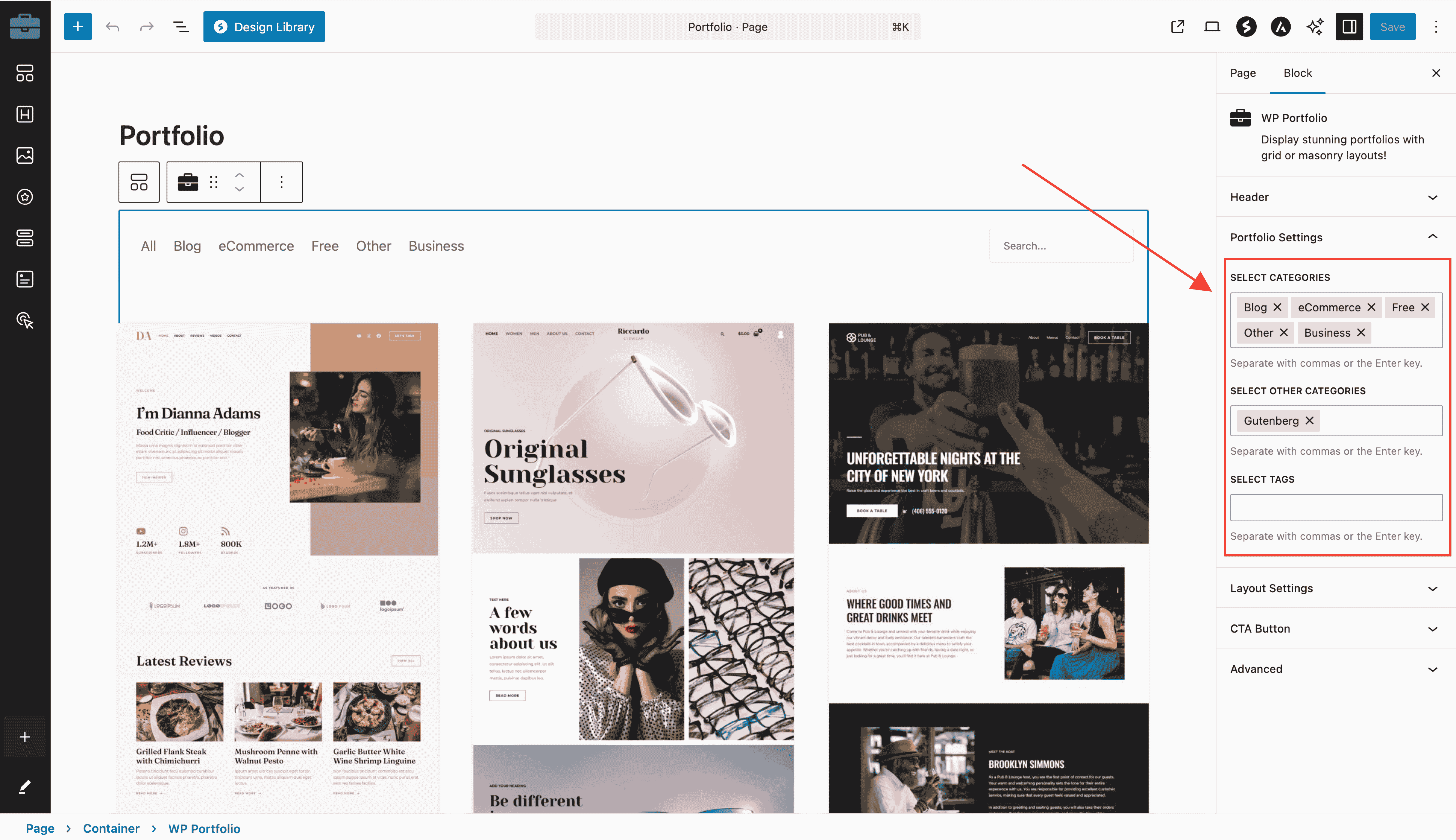
Here are the descriptions for each option visible under the Portfolio Settings section in the WP Portfolio Block settings:
- Select Categories: Filter portfolios by specific categories or display all categories.
- Select Other Categories: Filter portfolios by specific other categories or display all other categories.
- Select Tags: Filter portfolios using tags. Multiple tags can be added by separating them with commas or pressing the “Enter” key from your keyboard.
3. Layout Settings
Define how the portfolio items are displayed on your site.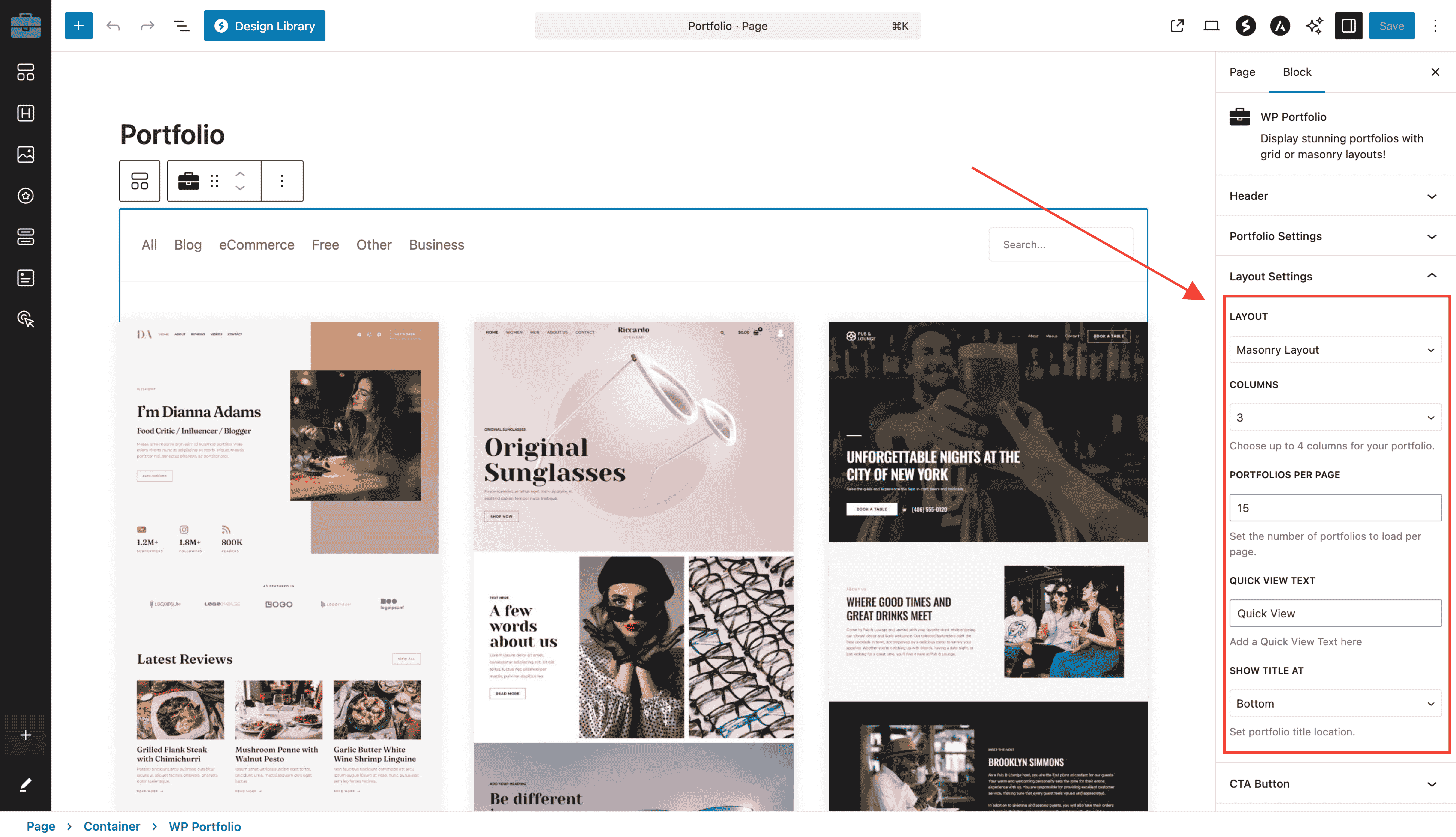
Here are the descriptions for each option visible under the Layout Settings section in the WP Portfolio Block settings:
- Layout: Choose between a Masonry Layout or a Grid Layout.
- Columns: Configure the number of portfolio columns, with up to 4 columns available.
- Portfolios Per Page: Set the number of portfolios displayed per page.
- Quick View Text: Customize the text displayed for the quick view when hovering over a portfolio image.
- Show Title At: Place the portfolio title at the top or bottom of the portfolio item.
Note:
When setting the layout to 4 columns, make sure to increase the content width to 1200px or reduce the font size from the style option. This adjustment is necessary because block-based themes typically have a narrower default content width compared to classic themes. Without this change, alignment issues may arise.
To change the content width in the “Astra theme”, please follow the steps below:
- Navigate to Appearance → Customizer → Global → Container in your WordPress dashboard.
- In the Container Width field, enter 1200.
- Click the Publish button to save your changes.
4. CTA Button
Modify the appearance and behaviour of the Call-to-Action (CTA) button for better user engagement.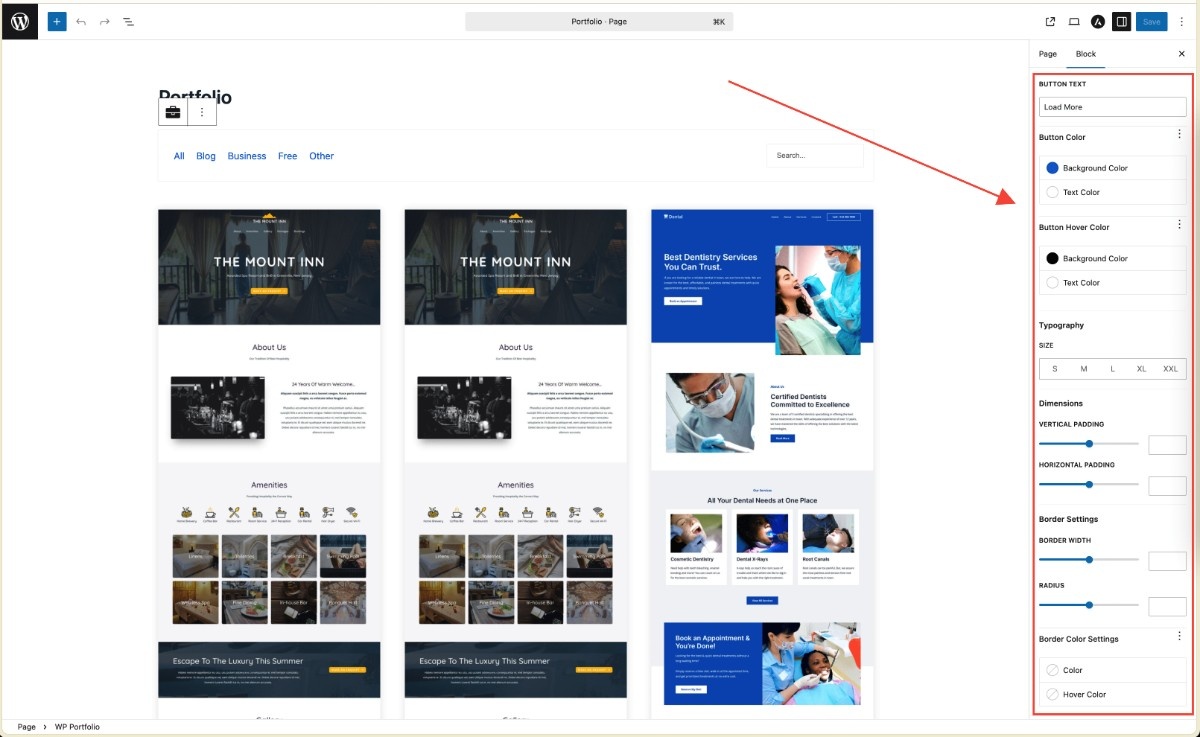
Here are the descriptions for each option visible under the CTA Button section in the WP Portfolio Block settings:
- Button Text: Set the custom label that will appear on the CTA button for portfolio items.
- Button Color: Choose the background color of the CTA button in its normal (resting) state.
- Button Hover Color: Select the background color that appears when users hover their cursor over the CTA button.
- Typography: Adjust the font size and style used for the CTA button text.
- Dimensions:
- Vertical Padding: Set the space above and below the text within the button.
- Horizontal Padding: Set the space to the left and right of the button text.
- Border Settings:
- Border Width: Control how thick the CTA button border will appear.
- Radius: Set the roundness of the CTA button corners (higher values make more rounded corners).
- Border Color Settings: Choose the color applied to the border of the CTA button.
These options allow you to fully customize the appearance and user experience of the CTA button in your WP Portfolio Block, ensuring it matches your site’s style and branding needs.
5. Advanced
For developers or advanced users, this section provides the option to add custom CSS.
Tip: Separate multiple classes with spaces for clean and efficient customization.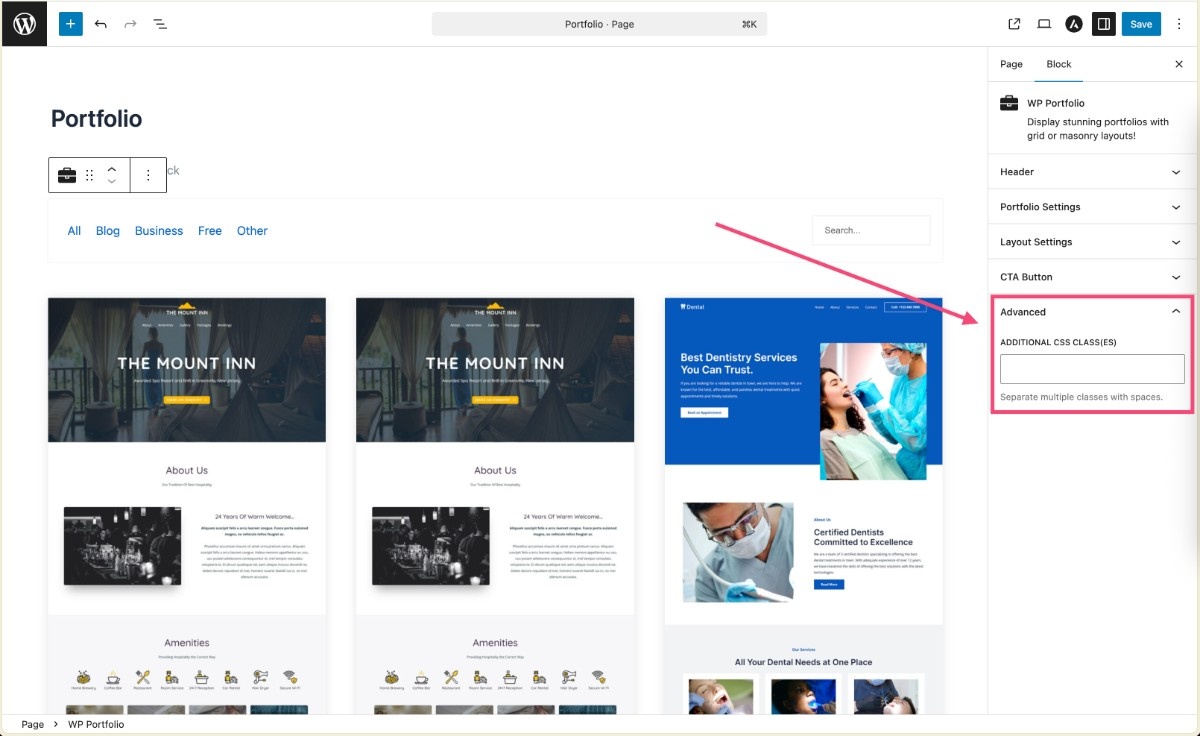
With these settings, the WP Portfolio Block offers flexibility and ease of use, enabling you to create stunning portfolio displays tailored to your needs.
We don't respond to the article feedback, we use it to improve our support content.